Mende(ley) is this Girl's Best Friend
Before even starting my PhD program, my advisor-to-be encouraged me to adopt a reference manager. Her reference manager of choice was Zotero, a free desktop manager with browser extensions available. She recommended this over EndNotes or RefWorks because it wasn't university dependent and I would be able to start building a repository that could continue with me throughout my career. I had started using it, but, for many reasons, I found it more of a hindrance than a help and I used it sparingly.

Then a colleague sent me an email (also before starting my program) to a series of blog posts by PhD2Published entitled "My Love Affair with Mendeley or How Mendeley is Basically My Brain" Parts 1, 2, and 3. It sounded interesting and more convenient to use than Zotero, so I downloaded the desktop manager. Luckily, it syncs with Zotero, so I didn't lose any of the references I had already collected.

Even though I downloaded it shortly after reading the blog posts, it wasn't until a few weeks into my first semester of the program that I started using it. Here's how I use it:

ProQuest and Ebsco seem to have the most incompatibility with the Mendeley extension in Chrome; these sites are generally very good at including citation information within the document when downloaded, though, so I tend to work around this by downloading the document and uploading it to Mendeley to create the entry. After uploading it, I check the details to ensure they are accurate and complete. This isn't much of an inconvenience for me as I generally find my sources through other databases - JStor, for example, works exceedingly well with the extension.
In terms of creating a bibliography, Mendeley has a plug-in for MS Word. With this plug-in, you can:
Additionally, Mendeley's citations are preserved and appear normally when non-Mendeley users open your document; I've heard from classmates this isn't always true of other reference managers.

Mendeley will also generate a BibTex file for anyone using a LaTex editor. Once the file is generated, you can update it at any time. This is another feature I adore because my advisor prefers LaTex to Word, particularly if equations are involved.

One important note on citations with Mendeley is that it generates the citation based on how the information is input in your manager. This means if a title is in all caps, it will appear in your bibliography in all caps; this is true for BibTex files, too. You can correct this by directly editing the citation in Word; if you refresh the citation (because you changed a detail for one of the sources), it will undo any adjustments you made to the bibliography - changes made to in-text citations should remain the same. It is my recommendation to wait until you are finished with the draft before making adjustments to the bibliography. As for LaTex, I need to do more experimenting to find an easy solution, but currently I have to make corrections to the entry to match the capitalization rules for the style and then update the BibTex file.
The Mendeley logo is hyperlinked to its website. The site also provides guides, video tutorials, a blog, and a support community (including a Q&A forum). I'm happy to answer questions you may have regarding my use of or getting started with Mendeley.
Then a colleague sent me an email (also before starting my program) to a series of blog posts by PhD2Published entitled "My Love Affair with Mendeley or How Mendeley is Basically My Brain" Parts 1, 2, and 3. It sounded interesting and more convenient to use than Zotero, so I downloaded the desktop manager. Luckily, it syncs with Zotero, so I didn't lose any of the references I had already collected.
Even though I downloaded it shortly after reading the blog posts, it wasn't until a few weeks into my first semester of the program that I started using it. Here's how I use it:
- Create an extensive file structure to organize readings and sources by research topic and class
- Store notes within the entry of each source; most of my class reading notes are handwritten, but transferring these into Mendeley will serve as good review for my comps
- Highlight and comment directly on the e-document (these mark-ups are synced across the desktop and web applications)
- Use the Chrome extension to save sources as I find them (more on this below)
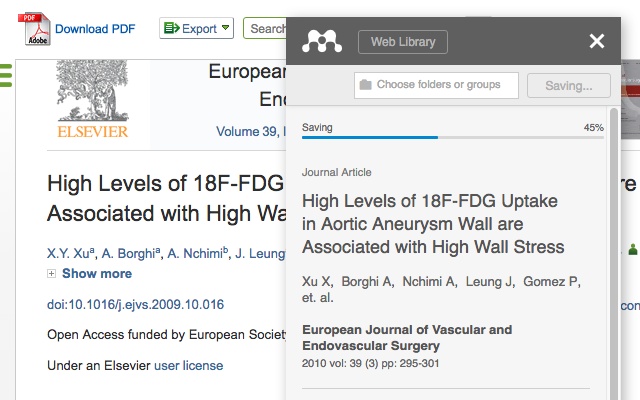
What makes it so convenient and easy to keep updated is that I have access to it anywhere I have an internet connection. In addition to the downloadable desktop application, Mendeley includes a web application; these two sync with each other (mine syncs automatically when I open the desktop application). When it comes to adding sources to my library, I generally use the Chrome extension because it allows me to open a resource (such as the PDF of an article) in a browser and add it to my library. Depending on the source, Mendeley is able to pull at least some (if not all) of the citation information and save a copy of the document to one or more specified folders in my library; if the citation information is incomplete or incorrect, I can edit it immediately before the saving the source. If the document can't be saved from the extension, I can save the citation information and easily upload a copy of the document to either the web or desktop application under its entry.
ProQuest and Ebsco seem to have the most incompatibility with the Mendeley extension in Chrome; these sites are generally very good at including citation information within the document when downloaded, though, so I tend to work around this by downloading the document and uploading it to Mendeley to create the entry. After uploading it, I check the details to ensure they are accurate and complete. This isn't much of an inconvenience for me as I generally find my sources through other databases - JStor, for example, works exceedingly well with the extension.
In terms of creating a bibliography, Mendeley has a plug-in for MS Word. With this plug-in, you can:
- Insert in-text citations by searching your Mendeley library for the author, title, or application-generated citation key
- Generate a full bibliography of all Mendeley-cited sources in the document; if you generate this early in the writing process, Mendeley will automatically update the bibliography as you add new in-text citations
- Select your desired citation style; Mendeley has an extensive database, including journal-specific styles
- Change your citation style; if you select a new style from the drop down menu in Word, Mendeley automatically updates the in-text citations and bibliography formats accordingly
Additionally, Mendeley's citations are preserved and appear normally when non-Mendeley users open your document; I've heard from classmates this isn't always true of other reference managers.

Mendeley will also generate a BibTex file for anyone using a LaTex editor. Once the file is generated, you can update it at any time. This is another feature I adore because my advisor prefers LaTex to Word, particularly if equations are involved.
One important note on citations with Mendeley is that it generates the citation based on how the information is input in your manager. This means if a title is in all caps, it will appear in your bibliography in all caps; this is true for BibTex files, too. You can correct this by directly editing the citation in Word; if you refresh the citation (because you changed a detail for one of the sources), it will undo any adjustments you made to the bibliography - changes made to in-text citations should remain the same. It is my recommendation to wait until you are finished with the draft before making adjustments to the bibliography. As for LaTex, I need to do more experimenting to find an easy solution, but currently I have to make corrections to the entry to match the capitalization rules for the style and then update the BibTex file.
The Mendeley logo is hyperlinked to its website. The site also provides guides, video tutorials, a blog, and a support community (including a Q&A forum). I'm happy to answer questions you may have regarding my use of or getting started with Mendeley.
Comments
Post a Comment